 Table of Contents

Signing Your Help Files with a Digital Certificate
Signing your help files with a digital certificate is a security measure that ensures its authenticity and integrity. This process adds a layer of protection to verify that the content originates from a trusted source and has not been altered since its publication.
In HelpStudio Suite, digital certificate signing involves using a signing tool to apply a digital signature to your compiled help files, such as the .cab files used by Microsoft Help Viewer. This signature includes information that identifies the publisher and a timestamp that indicate when the content was signed.
When you create a compiled help file in the Microsoft Help Viewer format and use signing tool to sign it with a certificate, you need to specify the attributes for signing tool to process and provide the name of the executable file for signing.
Configure the Signing Tool
- Go to Tools tab and select Options.
- Select Microsoft Help Viewer Signing page.
- Check the Use signing tool to sign the certificate option.
- Enter the name of the executable file in the Signing Tool Executable field.
- Enter the attributes in the Signing Tool Arguments field.
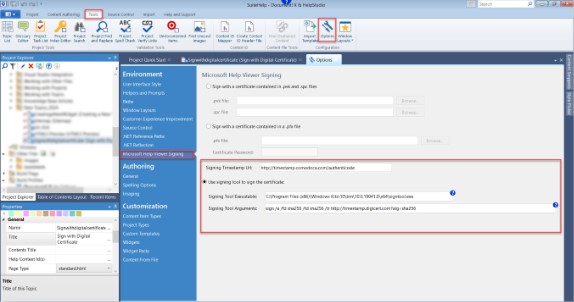
Microsoft Help Viewer signing
After you enter the inputs for the signing tool, the option to Sign with digital certificate becomes active in the Build Profile for the Microsoft Help Viewer help file type.
Sign with a Digital Certificate in the Build Profile
To select the Sign with digital certificate, go to the required Build Profile you created for the compiled help and check the Sign with digital certificate option.
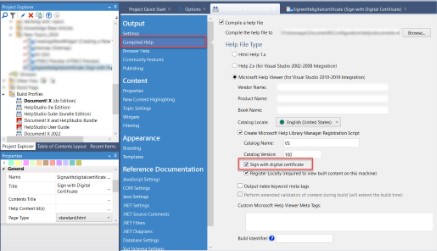
Sign with Digital Certificate option
Test the Signed Help Files
Before you publish and distribute the signed help files, test the file by opening it in Microsoft Help Viewer to ensure the signature is recognized and valid.